Most restaurants start with one QR code. It goes on the window, the counter and every table, and it opens the menu. That works, but every scan looks the same. You can't tell if a guest is sitting at table 4 or standing outside reading the menu before they come in.
Bitesized now gives every table its own QR code. Guests scan the code on their table and see the menu with their table number at the top. You print the whole set from one page, in the size that fits your tables.
How it works
Open QR Codes in your dashboard. The first time, it asks one question: how many tables do you have?
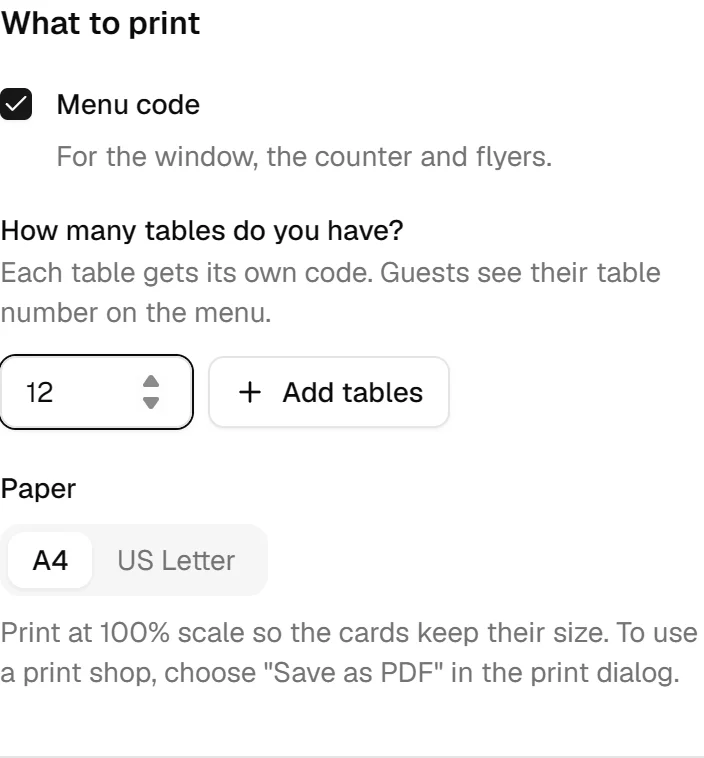
Type the number and press Add tables. Bitesized creates tables 1 to 12 (or however many you have), and each one gets its own code. You can rename them later, for example to "Patio 3" or "Bar 1", or add more tables when you expand.
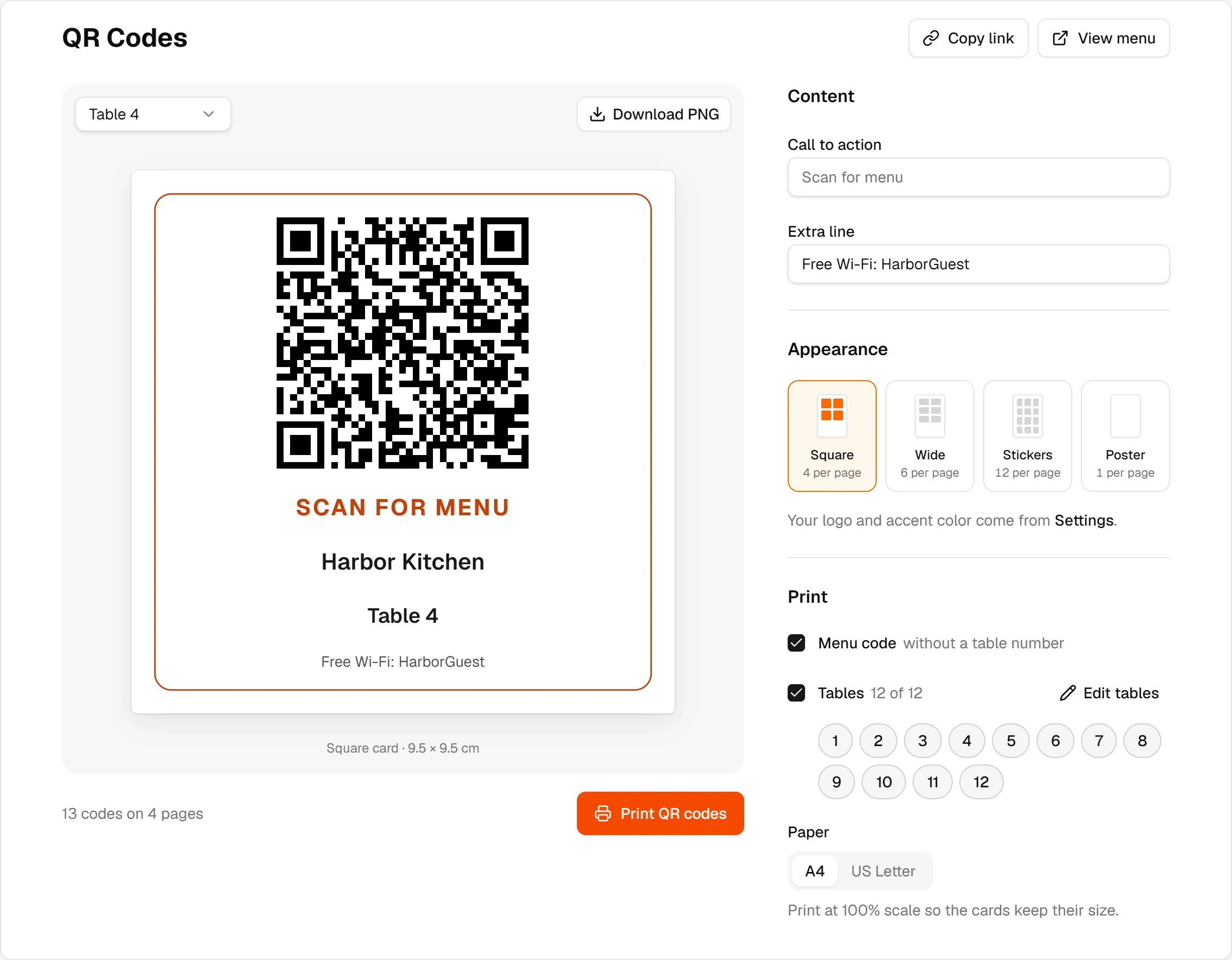
From then on, the page shows the card you are about to print. Pick a table from the list above the preview to see its card, and press Print QR codes when it looks right.
What guests see
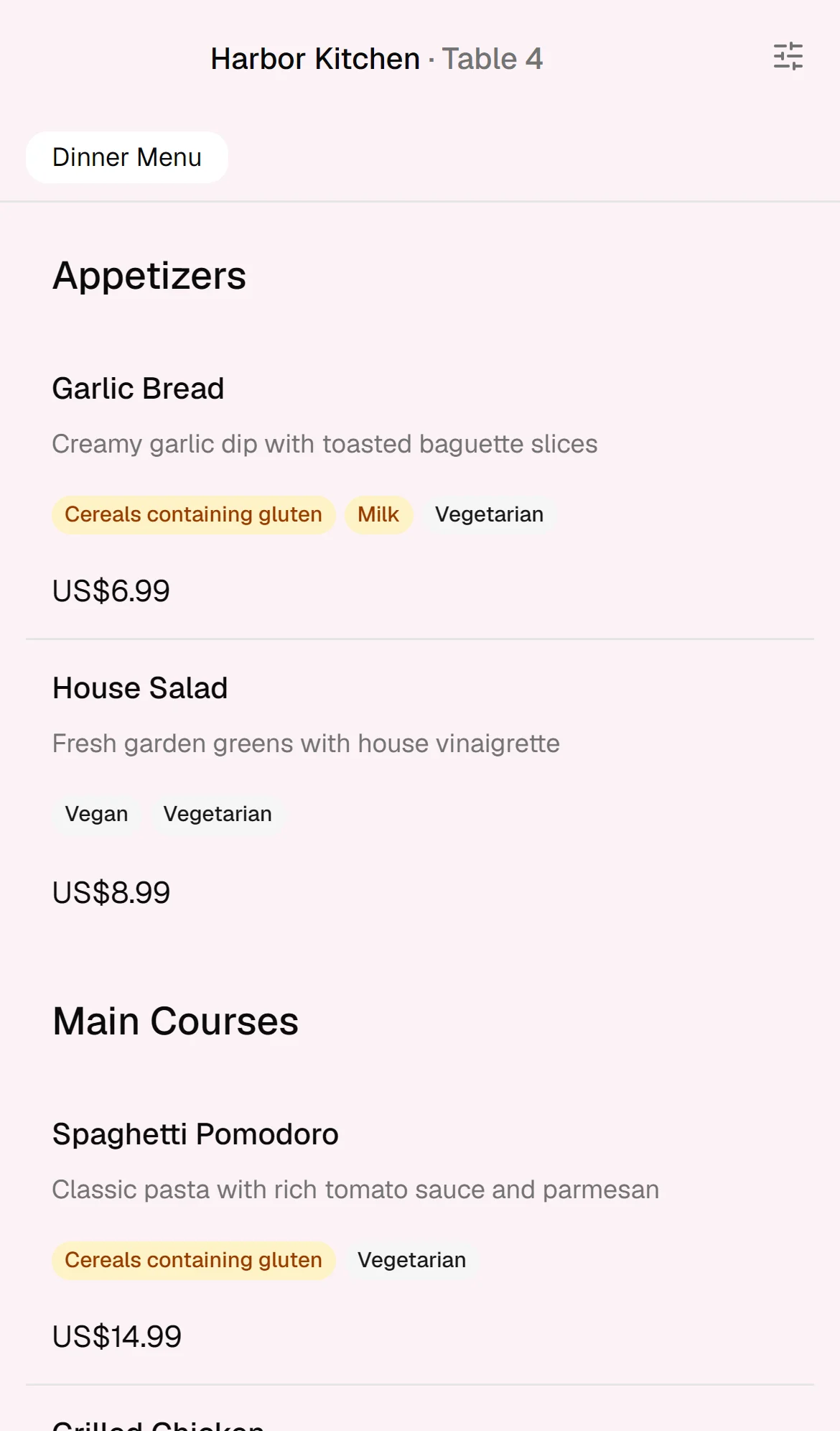
When a guest scans the code on table 4, the menu opens as usual, with "Table 4" next to your restaurant name. It's a small detail, but it tells the guest they scanned the right code, and it tells your staff where the guest is sitting if they show their phone.
The table codes open the same menu as your main code. When you change a dish or a price, every code shows the change right away. You never need to reprint because the menu changed.
Choose a layout
There are four layouts. All of them print on A4 or US Letter paper, so you can use the printer you already have.
| Layout | Size | Per page | Good for |
|---|---|---|---|
| Square card | 9.5 × 9.5 cm | 4 | Table stands and tent cards |
| Wide card | 9.5 × 6.5 cm | 6 | Acrylic stands and menu holders |
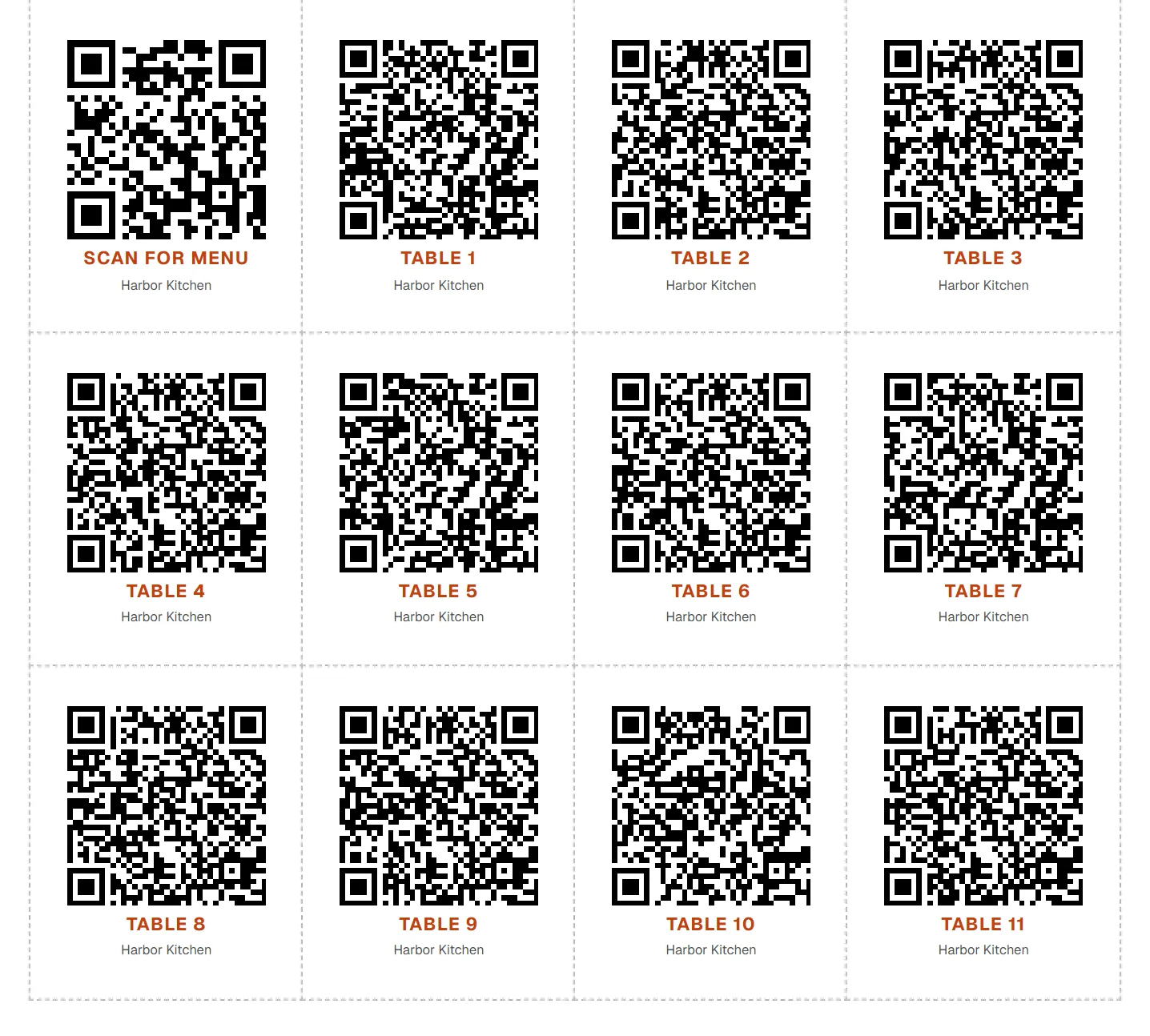
| Sticker sheet | 4.5 × 5.5 cm | 12 | Sticking straight onto the table |
| Poster | Full page | 1 | Windows, doors and the counter |
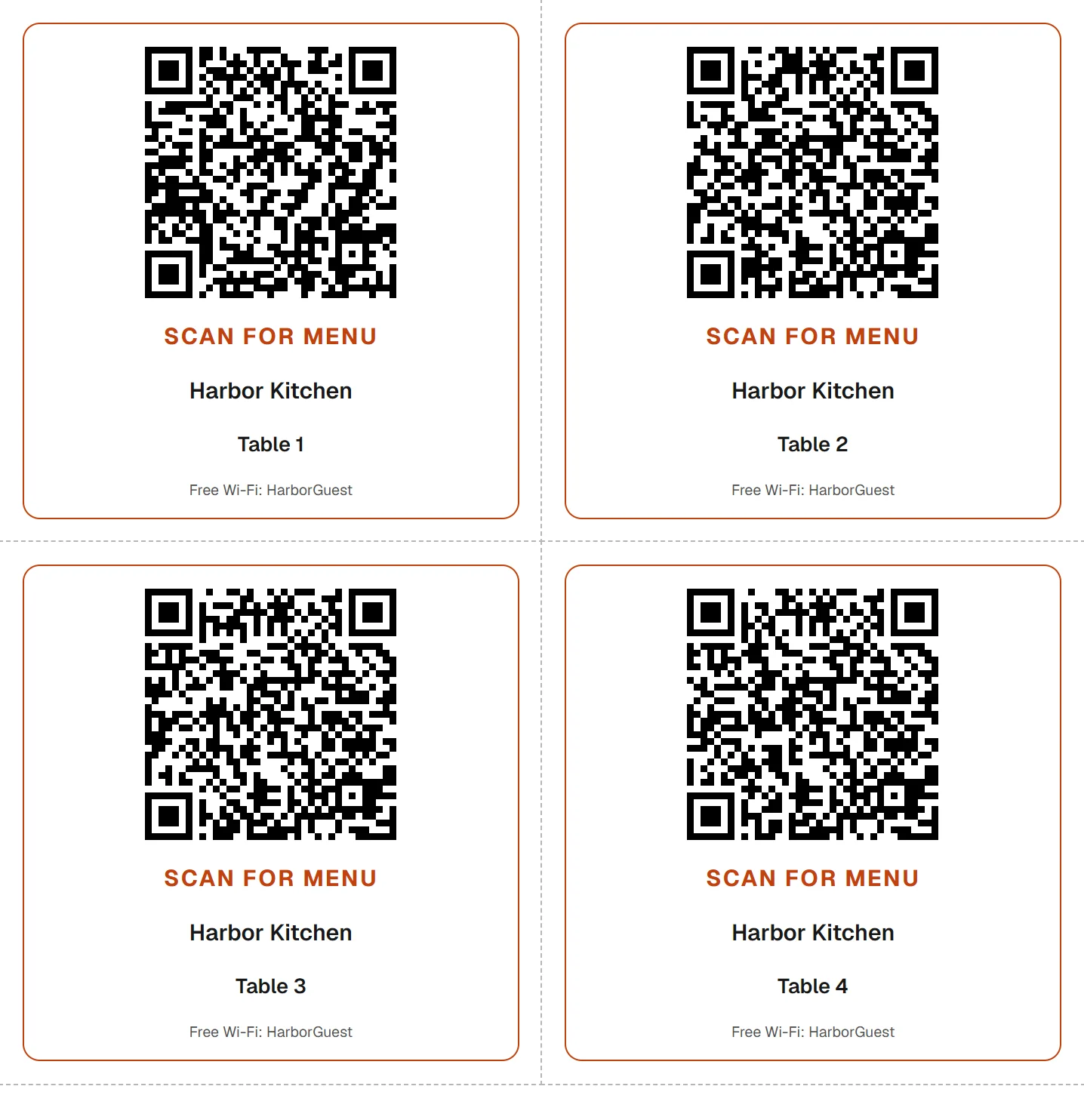
Square cards are a good default. They are big enough to scan from across the table and fit most stands. Here is a sheet of square cards for tables 1 to 4:
If you prefer stickers, the sticker sheet fits 12 codes on a page. The first one is your main menu code, followed by a sticker for each table. Cut along the dashed lines and stick them on.
Make the cards your own
You can change a few things on the cards, and the preview updates as you go:
- The call to action, like "Scan for menu" or "Order here". If you leave it empty, it uses "Scan for menu" in your menu's language.
- A short extra line, such as your Wi-Fi password or opening hours.
- The layout: square cards, wide cards, stickers or a poster.
Changes save on their own. There is no save button to forget.
The cards also use your logo and accent color. You set those once in Settings, under Brand, so they match everywhere.
Print only what you need
Every table is selected when you open the page, along with your main menu code. Printing the whole set is one click. If a card gets damaged, tap the other tables to leave them out, and print just the one you need. The page tells you how many codes and pages you are about to print before you press Print QR codes.
A few tips for good results:
- Print at 100% scale. If your printer shrinks the page to fit, the cards come out smaller than they should.
- Use thick paper or card stock for cards, and laminate them if they will get wet.
- To use a print shop, choose "Save as PDF" in the print dialog and send them the file.
- Scan a few printed codes with your phone before you put them on the tables.
For more on materials, sizes and where to place the codes, see our guide on how to print QR codes for restaurant tables.
What if I remove a table?
If you delete a table, its printed code still opens your menu. It just won't show a table number anymore. Nothing breaks for a guest who scans an old card.
Try it
Table codes are available now on every Bitesized account. Open QR Codes in your dashboard, tell it how many tables you have, and print your first sheet.
If you don't have a menu yet, create one for free with Bitesized. You can have a menu and a full set of table codes ready to print in a few minutes.